
Last Updated: October 5, 2026
Table of Contents
Introduction
TP-Link AX5400 Full Gigabit wifi for 8K streaming: Up to 5,400 Mbps of dual-band wifi for faster browsing, streaming, and downloading. Full-featured wifi 6: Equipped with 4T4R and HE160 top fabric in the 5GHz band to enable ultra-fast 4.8Gbps connections.
TP-Link AX5400 Gigabit Dual Band Wireless Network Router 6. RJ-45 is the WAN connection type. WLAN Data Transfer Rate (Max): 5400 Mbit/s; Wi-Fi Band: Dual Band (2.4GHz/5GHz); Standard Superior Wi-Fi: Wi-Fi 6 (802.11ax). Gigabit Ethernet is the type of Ethernet LAN interface. 10/100/1000Base-T(X) cabling technology is used. Ethernet LAN data rates are 10,100,1000 Mbit/s. WPA, WPA-Enterprise, WPA2, WPA2-Enterprise, and WPA3 are the security algorithms. Type of Product: Portable Router; Color of Product: Black
What are the Features of TP-Link AX5400
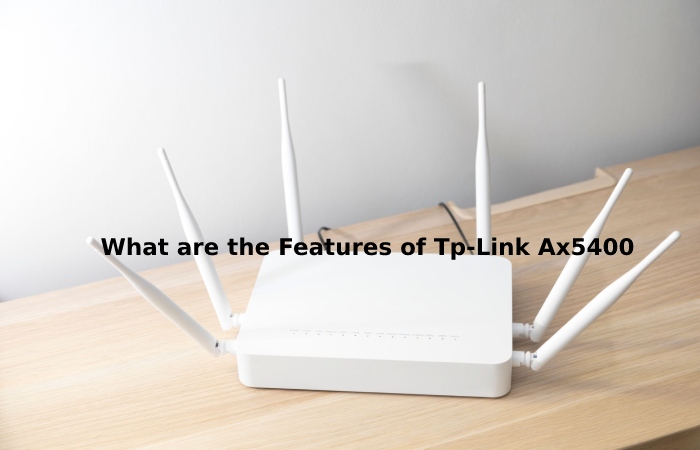
For 8K streaming, use gigabit wifi, which offers 5400 Mbps of speedier browsing, streaming, and downloading.
Wifi 6 – Equipped with the 4T4R top structure and HE160 in the 5GHz band, this technology allows for 4.8Gbps ultrafast connections.
Connect 200+ Devices§: MU-MIMO and OFDMA are compatible with reducing congestion and quadrupling average performance.
Comprehensive coverage – 6 × antennas and Beamforming ensure a broad range.
HomeShield: TP-Link’s premium security services secure your home network with state-of-the-art web and IoT protection features.
More ventilation holes, less heat: the improved ventilation area releases the machine’s heat.
USB sharing: The 1 × USB 3.0 port allows easy media sharing and private cloud creation.
Easy Setup – Configure the router in minutes with the Tether app.
For users looking to improve wireless coverage across multiple rooms, mesh networking can be an effective solution. While the TP-Link AX5400 offers strong Wi-Fi 6 performance and broad coverage, systems such as the Asus Zenwifi Ax Mini are designed specifically to create seamless whole-home wireless networks with simplified device roaming and centralized management. TP-Link and ASUS both offer solutions aimed at reducing dead zones and improving connectivity throughout the home.
Ways to Set Up Your TP-Link AX5400 Wi-Fi 6 Router
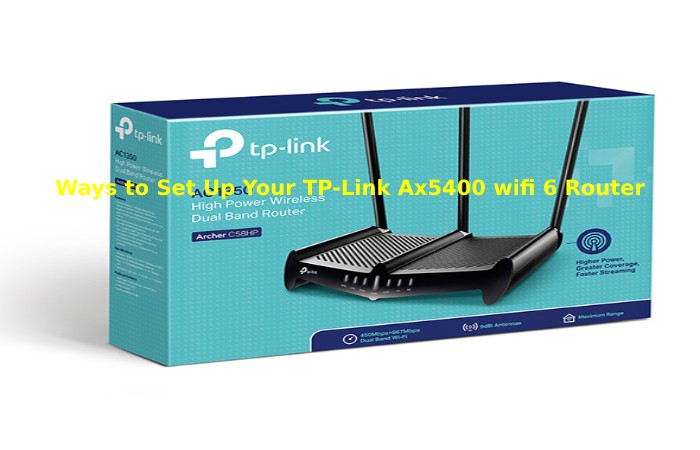
Did you buy a new TP-Link AX5400 Wi-Fi 6 router and want to configure it for the first time? Do you want to set up a TP-Link router without an internet cable, using a laptop or phone, and also wifi? In that case, we’ve got it covered. It is the most comprehensive guide on how to set up any TP-Link wifi 6 router, so you can start using your network as quickly as possible:
Before you start the setup process, do the following steps for the TP-Link AX5400 installation
If you have just purchased a new TP-Link router or received it from someone else, look at the bottom for a label with technical details:
- Locate the default access address. It should be something like tplinkwifi.net or 192.168.0.1.
- Locate the SSID fields that display the names of the wireless network bands issued by the TP-Link router.
- Find the wireless password or PIN that is used by default.
See the Wifi Details at the Bottom of Your TP-Link Router
Write down those details, which will be helpful during the setup process. You should also know the details of your Internet connection from your Internet provider: the type of Internet connection you have, any required usernames and passwords, and other information.
Then, take your router and connect it to a power source, using the power adapter that comes with it. Next, use a network cable to connect your TP-Link wifi 6 router to your modem, router, or Internet service provider (ISP) network. Plug this cable into the WAN port on the back of the router, which is a different color than the other Ethernet ports. For example, on a TP-Link Archer AX10, the WAN port is colored blue. Last but not least, press the power button on the back of the router to turn it on.
Checking the default network information on your router is an important first step when connecting new devices. The same principle applies when using services from A Helio Wireless Carrier, where network settings, connection details, and device configuration play a key role in establishing secure and reliable wireless access.
The First Steps to Take on Your TP-Link Wifi 6 Router
Look at the LEDs on the front of your TP-Link wifi 6 router. Wait till they light up and stabilize. The Internet connection LED should light orange or red because your router cannot connect to the Internet.
After completing the initial router setup, users often look for ways to improve speed, security, and overall network performance. Understanding emerging innovations such as Gte Technology can provide additional insight into how modern connectivity solutions continue to evolve and support faster digital experiences across homes and businesses.
Conclusion
Tp-link ax5400 router above information is helpful for installation up and running, and also you can connect all your devices to the network. It enables a sound monitoring system where specific computers, laptops, or PCs can control data transfer for IP addresses and also helps save unnecessary additional data usage.